Configure Microsoft 365 profiles on managed devices
Prerequisites:
Create configuration file
In the Office Customization Tool, make selections for all deployment settings, select your file format (xml), then export the configuration file.

Create new vendor profile
The former iOS Profiles library has been combined with the Microsoft 365 library to create the new Vendor Profiles library.
In KACE Cloud:
- Go to Libraries.
- Click the Vendor Profiles tile.
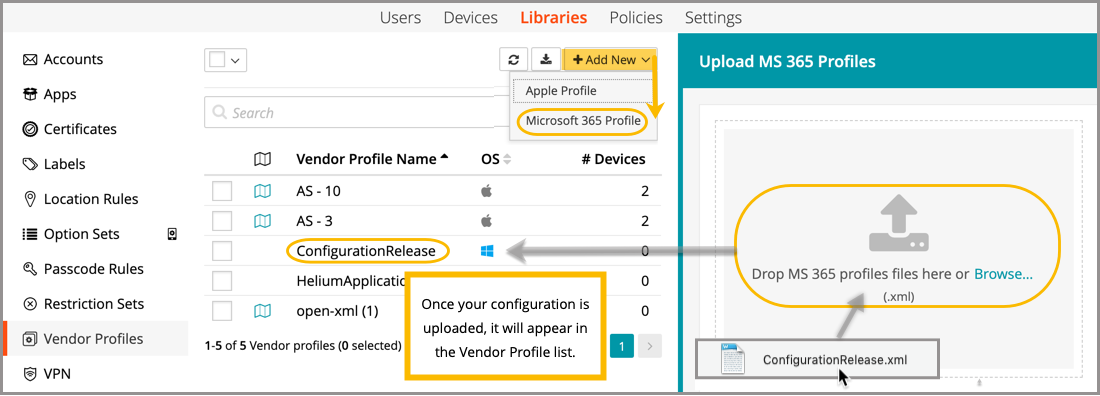
- Click Add New > Microsoft 365 Profile.
- Upload your .xml configuration file, then click Add.
Once your Microsoft 365 profile is added, you can deploy it to devices using policies.
Once a Microsoft 365 configuration has been deployed to a device, Microsoft requires that an activation step is completed by the licensed end-user.
Deploy profile from file
- Go to the Devices tab.
- Select one or more iOS device names from the list.
- In the right panel, choose Vendor Profiles.
- Click +Add.
- Select the Upload tab, then browse to find the .xml configuration file.
The configurations contained in the profile will then appear on the device(s).
An admin can choose to view only the profiles that are shown in the library. Some profiles are already installed on a device and show up in KACE Cloud during the enrollment process, so they are not part of the library. These profiles are protected and cannot be modified or removed by the KACE Cloud admin. If a combination of library profiles and non-library profiles are selected for removal, an error message will notify an admin that the non-library profiles cannot be removed by this action.
Deploy profile from library
- Go to the Devices tab.
- Select one or more device names from the list.
- In the right panel, choose Vendor Profiles.
- Click +Add.
- Select the From Library tab.
- Select existing profile(s) from the list, then click Apply to Device.
Deploy profile from Library to device using policies
- Select the Policies tab in top navigation.
- Complete one of the following steps:
- To create a policy, click Add New.
- To edit an existing policy, click the policy to open the policy details.
- In the Applies To section, select one or more labels associated with target devices. For more details about labels, see Using labels to group similar items.
- In the right pane, in the Resources tab, click Add Resources to open the drop-down list, and then click Vendor Profiles to open a dialog.
- Slide the Link toggle to link/unlink the Vendor Profile.
- To link the Vendor Profile to policy, slide the Link toggle to right. The color of the toggle changes to green indicating the resource is linked.
- To unlink a previously linked Vendor Profile, slide the Link toggle to left. The color of the toggle changes to red indicating the resource is unlinked.
- (Optional) In the Options column, click the icon to open Resource Options dialog. Select one of the following Compliance Type:
- Include - Select this option to include the resource when determining the compliance status.

NOTE: By default, all the Resources in a policy are included in compliance checks.
- Exclude - Select this option to exclude the Resource when determining the compliance status.
- Include - Select this option to include the resource when determining the compliance status.
- Click Add Resources to associate the item to the policy. You can view the resource in the Resources pane.
- Click Push Resource to deploy the added resources to the target devices or users.
For more information about policies, see Using policies to manage device configurations.
|
|
NOTE: Windows platform allows a single Vendor Profile to be linked to a device. |

For more information about policies, see Using policies to manage device configurations.
View profiles and details
- Go to the Devices tab.
- Select one or more device names from the list.
- In the right panel, choose Vendor Profiles.
- Select a profile name from the list, then click View Details.
Remove profile from library
- Go to the Libraries tab.
- Click the Vendor Profiles icon.
- Select one or more profile names from the list.
- In the right panel, click Remove.
The profile will be removed from the library and from the devices to which it has already been deployed.
Remove profile from device
- Go to the Devices tab.
- Select one or more device names from the list.
- In the right panel, choose Vendor Profiles.
- Select a profile or profiles, then click Remove.
If a combination of library profiles and non-library profiles are selected for removal, an error message will notify an admin that the non-library profiles are protected and cannot be removed by this action.
Troubleshooting
| Problem | Solution |
| Are there any pre-requisites to setting up Microsoft 365 using KACE Cloud? | Yes. You must have Azure AD set up with a Microsoft 365 app added. You can manage this set-up in the product view of the Azure AD portal. In addition, all end users must have a license assigned to their account to be able to access Microsoft 365. |
| Are there additional steps I can take to ensure consistency between these tools? | We recommend that you also integrate Azure AD with KACE Cloud. Please see our documentation for SAML - Azure AD and Windows Enrollment using Azure Domain Join. |
| Where can I create the XML configuration file? | XML configuration files can be created at config.office.com/deploymentsettings. The configuration that is created can be uploaded, manually deployed/removed, assigned to policies—just like any entity in KACE Cloud. |
| What happens when I delete my configuration file? | Deleting a configuration will cause the system to remove Microsoft 365 apps from all systems where the configuration has been deployed. |
| How can I quickly troubleshoot a deployment failure? |
Settings to check: Firewall configuration. The devices where the configurations are deployed must be able to communicate with the delivery endpoint specified in the configuration file (e.g., the Microsoft CDN), so firewalls must be configured appropriately. Existing Office apps. Depending on the configuration file, existing Office apps may be deleted from the device. Asynchronous delivery. Delivery of the apps is asynchronous and may take a long time, depending upon the number of apps selected and the device’s connectivity speed to the delivery endpoint. User error or infrastructure. For these types of errors, the response should be visible in the device history area and include an error status code. Microsoft provides a comprehensive list of error status codes to consult. |
| My end user is receiving an error message about licensing assignment when signing in to Microsoft 365. | All end users must have a license assigned to their account to be able to access Microsoft 365. Go to config.office.com/deploymentsettings to assign end user licenses. |
| Other than Azure AD, is there any other way to assign Microsoft 365 licenses to my end users? | Yes. Microsoft provides information on licensing and activation in their documentation. |